Word 2013 - How do you delete a list of numbers at the side?
I have a Word 2013 document on my PC. I have opened a 36 page document (huge, word count more than 3300). I don't know why but there is a list of numbers on the left for each line. They are not suitable for printing. So, can someone please tell me how to remove them?
2 Answers
Go to
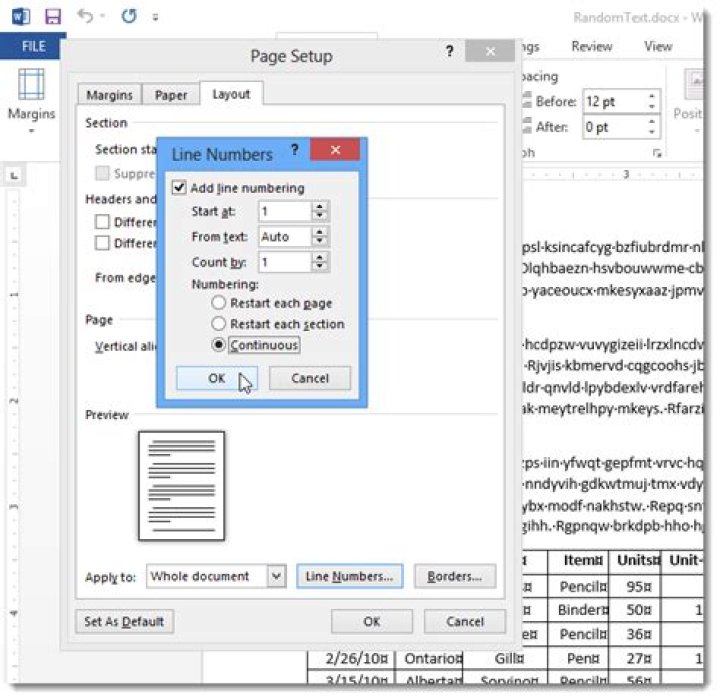
Page Layout tab > Line Numbers > Line Numbering Options:Go to
Layout tab > click Line Numbers:Uncheck
Add line numberingand OK your way out:
Open the document in or copy it to a text editor with regex capabilities I am writing this with notepad++ in mind but it should work similarly with other editors. Open find&replace in the editor (probably strg+f). Make sure to enable regex matching. In the search field enter
\n\d+(?=\s)if you only want to remove the numbers or
\n\d+\s+if you also want to remove the whitespaces on the right of the numbers. In the replace field enter \n.
Click Replace all and you should be done. You can try Find all first if you want to make sure that the regex actually works (I am not 100% sure and maybe you have some weird end-of-line characters).
Note: this only works if your document is just text and no sophisticated formatting like fonts and colors and bold and italics and all the other stuff you can do with word processors.


