Screen sharing issue on Ubuntu 19.04
Recently I've upgraded my Ubuntu to 19.04. But there I am facing the issue with sharing screen.
On Skype: I installed the latest version of skype. But I can't see any screen sharing option. First I thought, it might be the problem with skype. And then tried the other options
On Chrome: Then I tried to share the screen with hangout and google meet . And there too, it all came with blank screen on the other side of the call.
On FireFox: Here, when I tried to share screen with hangout and google meet, the problem was same as with chrome.
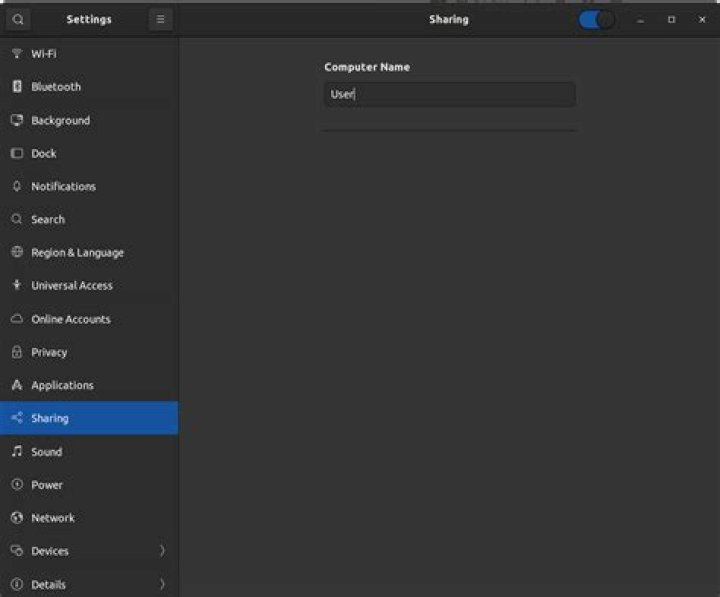
I tried to enable sharing option from settings as well. There I couldn't see the screen sharing option:
Even thought I enable sharing option from top right, it gets disabled when I close the settings options and again come back there.
Is there any thing that I can do to solve this issue? Please help, It's blocking my daily work.
Thank You.
2 Answers
According to Ubuntu's screen sharing guide, one must have the Vino package installed for Screen Sharing to be visible.
Vino is the default VNC server in Ubuntu to share your existing desktop with other users.
sudo apt install vinoLogout/login then try again any screen sharing attempt, you can navigate to settings and see if the Sharing now display screen sharing option.
Source:
2I also had a similar issue.Vino was present even then screenshare was not happening.I had to use windows while meetings because of this.After few days while screen recording on ubuntu I was having a similar issue of getting black screen on the recorded video.Starting the recording software from terminal gave me clue that Wayland was somewhere causing the issue.I tried recording by disabling it,and voila!! it worked and not just for recording,even screenshare worked in all browsers.
To disable wayland follow the steps:
1: Open files
2: Other locations
3: Computer
4: etc
5: Search for 'gdm3'
6: within gdm3 two '.conf' files will be present,you can view them by opening and look the one having line #Wayland=false
7: Right click there and choose 'open in terminal'
Within terminal : sudo nano custom.conf (this name might be different depending on ubuntu version but check file for #Wayland=false line and edit that)
8: Uncomment the '#Wayland=false'
9: ctrl+o
10: ctrl+x
11: reboot the system.


