How can I control disk numbering (enumeration) in Windows 7 Disk Management?
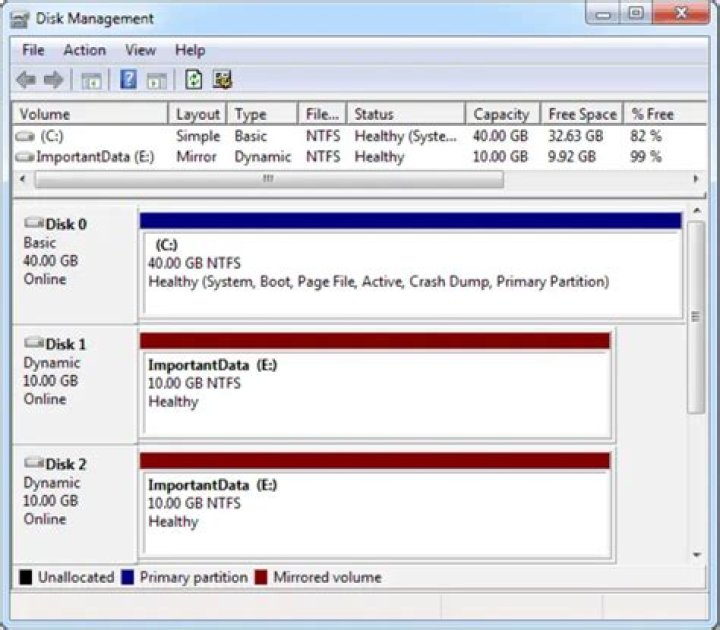
A desktop system had two drives (Assigned C and D, which were enumerated in Disk Management as Disk 0 and Disk 1). A new SSD was added as the boot drive, after copying the C drive to the SSD. The SSD was connected to SATA 0 (master) port on the motherboard. The previous C Drive was moved to SATA 2 and is reformatted as a non-booting NTFS partition. The D drive remained on SATA 1.
The system boots and everything seems fine. I was able to manually adjust the Drive Letters. However, the list in Disk Management is re-ordered. Disk 0 is the the previous Disk 2 (D Drive) on SATA 1, Disk 1 is the new Boot Drive (now C) on SATA 0, and Disk 2 is the former C Drive (now assigned E) on SATA 2.
Does the Disk 0, 1, 2, designation mean anything? I would prefer to have them display in Disk Management as Drives C, D, and E from top to bottom. Is the Disk enumeration based on the SATA port or something else? (If it was based on SATA Port, they should be ordered C, D, E. Is there any way to re-order the Disk number assignments? What actually does determine the Disk number enumeration?
3 Answers
The numbering depends on what sata port they are plugged into. On some motherboards (I have a Gigabyte) it has markings right on the board to tell you what port is what numeration. the only way to change it is to put them in the ports the way you want them to show in disk management. They are physical "addresses" that cannot be changed.
Update:
I am sorry I did make a mistake. I was only half complete in my answer as well as I mixed settings.
SATA drives numbering is decided by the position in ports. However You can change the order shown by Disk Management by installing a new OS to a different drive. When using SATA drives Windows decides Masters and Slaves by your Bios boot order. The first Drive with a Windows OS will be listed as C: and as Disk 0 In Disk Management. So If you install a new drive and put it in place of the other drive (Disk 0) you need to check your bios and make sure it is the first Hard Drive in the boot order if you want it to show as Disk 0 in Disk Management. It is ok to have other devices before it but must be the first hard drive. Also you must check your motherboard documentation. Some manufacturers actually make specific ports master or slave.
My mix up in settings was that jumpers are only valid for master and slave on IDE drives. There are jumpers on SATAs but they are limiters. An example being, My hard drive has 3 Gb/s operation mode. I can set a jumper to limit it to 1.5 Gb/s operation.
12According to KB937251, the order in which SATA disks are enumerated and displayed on Windows is not guaranteed to correspond to which SATA ports the disks are connected to, and can even vary between operating system startups. The article says that this is due to a design limitation of Windows:
Status
Microsoft has confirmed that this problem is due to design limitations in the Microsoft products that are listed in the "Applies to" section. This problem occurs because drives are enumerated in the order in which they are presented to the operation system by the system BIOS.
There doesn't appear to be any workaround available to force the disks to be listed in a specific order. However, it's implied that this issue will not cause any problems in system operation, so it can be safely ignored.
5It seems to me that the answer would be attach your main drive from sata 1, then boot up, let bios see it. Windows will see that as drive 0. It will assign C: and if it has multiple partitions, other letters. Then shut down the computer, add the next drive and boot up. Make sure bios sees it, then check disk manager in Windows. It should show as Disk 01. You can change letter assignments at will. Windows will increment the number for each new disk. Voila, total control of disk and letter assignments.
2

